


AltTube TV Profile Update #
Alttube TV Profile Update – Keeping your profile information up to date helps ensure your AltTube TV account remains accurate, professional, and easy for other members to recognize. Whether you want to update your display name, change your profile image, modify your personal information, or adjust other account details, the Profile Update section makes managing your account quick and simple.
Your profile serves as your identity across the AltTube TV platform. Viewers, subscribers, creators, and community members may see elements of your profile when interacting with your content, commenting, or engaging with your channel. For this reason, it is recommended that you review your profile periodically and make updates whenever necessary.
Alttube TV Profile Update – Accessing Your Profile Settings #
To update your profile, begin by clicking on “Account” in the main menu. In the drop down menu, you will see your “Edit Profile” where it can be accessed anywhere on the AltTube TV platform. The “Account” in the main menu provides access to all major account features and settings such as:
- Change Password
- Edit Profile
- Forgot Password
- Payment Records
- Members Panel
From this page, you can review and edit your available profile details.
Updating Your Profile Information #
The “Update Your Profile” page allows you to modify various aspects of your account. Many of the tabs found in this list allows you the choice between Private or Public in the tab drop down. Depending on your membership level and account type, available options may include:
- First Name
- Last Name
- Nick or Display Name
- Videos Tab – Choose Public or Private
- Audios Tab – Choose Public or Private
- Playlists Tab – Choose Public or Private
- Posts Tab – Choose Public or Private
- Subscriptions Tab – Choose Public or Private
- Watch Later Tab – Choose Public or Private
- Notifications Tab – Choose Public or Private
- History Tab – Choose Public or Private
- Rated Tab – Choose Public or Private
- Reacted Tab – Choose Public or Private
- About Tab – Choose Public or Private
- Discussion Tab – Choose Public or Private
- Biographical Info
- Introduce Yourself – Allows HTML
- Facebook Link
- X Link
- Instagram Link
- Pinterest Link
- YouTube Link
- Linkedin Link
- WhatsApp Link
- Telegram Link
- TikTok Link
Simply click or tap the field you wish to edit and enter your updated information.
When making changes, ensure that all information is accurate and reflects how you would like to appear on the platform. Creators are encouraged to maintain a professional and recognizable profile to help viewers easily identify their content.
Don’t forget to click on the Red Button “UPDATE PROFILE” to save the information you’ve entered.
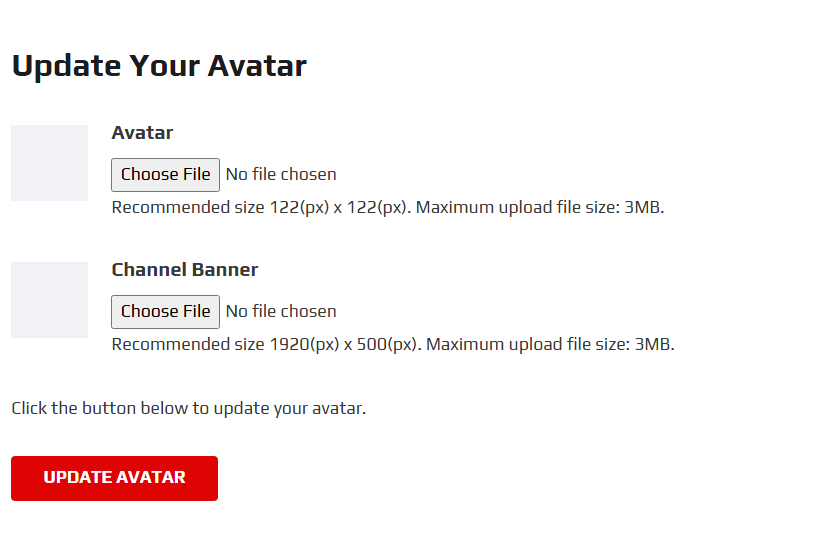
Uploading or Changing Your Profile Picture & Channel Banner
Your profile picture is one of the most visible elements of your account and helps other users quickly recognize you.
Alttube TV Profile Update – To update your Profile or Channel Banner images:
1. Navigate to the Profile Update page.
2. Locate the profile & banner image section.
3. Select the option to upload or change your image.
4. Choose an image from your device.
5. Click “Update Avatar” when finished.
For the best results, use a clear, high-quality image that represents you, your brand, or your channel. Use the image sizes in the image above. Also, use Webp images for faster loading. Our settings do not allow Png images.
We suggest using an image converter program to convert images to webp’s like: Elementor
Alttube TV Profile Update – Updating Your Biography #
The biography section allows you to tell viewers more about yourself, your organization, or your channel.
A well-written bio can help:
- Introduce yourself to new visitors.
- Explain the type of content you create.
- Share your mission or purpose.
- Provide additional information about your channel.
Keep your biography concise, informative, and relevant to your content. Updating your bio regularly can help keep your audience informed about changes to your channel or projects.
Alttube TV Profile Update – Managing Social Links #
If available, you may also add or update links to your website and social media profiles. These links allow viewers to connect with you beyond AltTube TV and learn more about your work.
When entering website or social media URLs, verify that each link is correct before saving your changes. Broken or incorrect links may prevent users from reaching your external pages.
Saving Your Changes #
After updating your all your profile information, be sure to save each change on the page, UPDATE PROFILE, UPDATE AVATAR & UPDATE PASSWORD if you’ve changed it!
Once your changes have been successfully saved, your updated profile information will be applied to your account. In some cases, you may need to refresh the page to immediately view the updated information.
If you leave the page before saving, your changes may be lost and will need to be entered again.
Profile Update Tips #
To maintain a professional and trustworthy presence on AltTube TV, consider the following best practices:
- Keep your profile information current.
- Use a clear and recognizable profile image.
- Regularly review your biography and channel details.
- Verify all website and social media links.
- Update contact information whenever it changes.
- Ensure your profile accurately reflects your content and brand.
Need Additional Assistance? #
If you experience difficulties updating your profile or encounter an error while saving changes, please contact the AltTube TV support team for assistance. Our team is available to help resolve account-related issues and ensure your profile information is updated successfully.
Keeping your profile up to date helps improve your experience on AltTube TV and allows viewers, subscribers, and community members to connect with you more effectively.
Have Questions? Contact Us or you can view our FAQ page for more information.