


Alttube TV Nav Tips #
🔍 Search & Discovery #
Alttube TV Nav Tips – Start typing in the search bar and related results will appear in real time, helping you locate content quickly without browsing through multiple sections.
Looking for something specific? The search bar and Main Menu lets you instantly find:
- Music – Found In The Main Menu
- Videos – Found In The Mega Menu Under Videos
- Creators – Become A Creator
- Subscribers – Sign-up to Subscribe
Alttube TV Nav Tips – Main Menu Map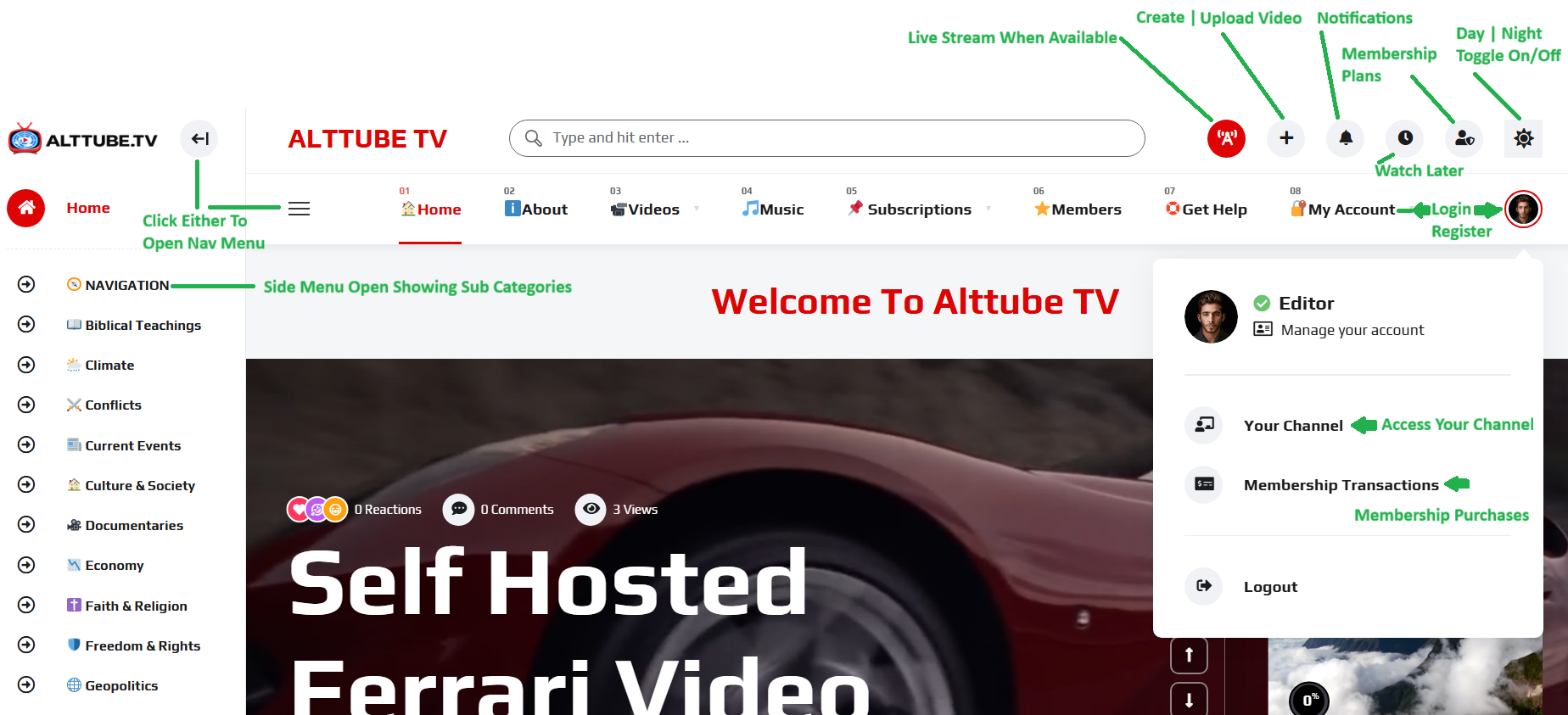 #
#
Alttube TV Nav Tips – The Main Menu is the primary navigation area of Alttube TV and provides quick access to the platform’s most important sections. Located across the top of the page, the Main Menu includes links such as Home, About, Videos, Music, Subscriptions, Members, Contact, Help, and Account. Although the main menu may slightly change once in a while, the basic navigation menu will remain fairly consistent. Users can also use the search bar to quickly find videos, channels, playlists, and content creators. For additional navigation options, click either of the menu icons located on the left side of the header to open the side navigation panel, where you can browse categories and subcategories organized by topic.
The Main Menu also provides convenient access to important account features. Logged-in users can create or upload videos, view notifications, manage membership plans, access their Watch Later list, and switch between Day and Night viewing modes using the icons located in the upper-right corner. Clicking your profile picture opens the account menu, where you can manage your account, access your creator channel, review membership transactions, and log out. Together, these navigation tools make it easy to discover content, manage your account, and access all key Alttube TV features from any page on the platform.
Side Menu Navigation #
How to open the Navigation Side Menu #
The Side Menu Navigation provides quick access to the most important features and tools available on Alttube TV. In the side menu you will find the extended video categories along with your personal content tools.
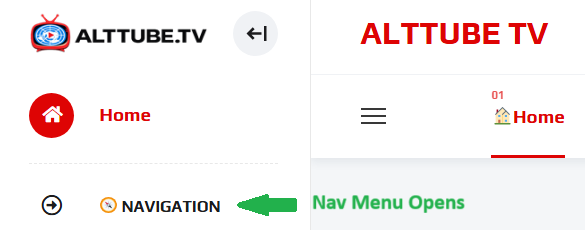
To open the Side Menu, click the Navigation Menu icon located at the top-left corner of the screen. Once selected, the menu will slide open from the left side, revealing a complete list of available sections and user tools. This makes it easy to move throughout the platform without needing to return to the homepage.
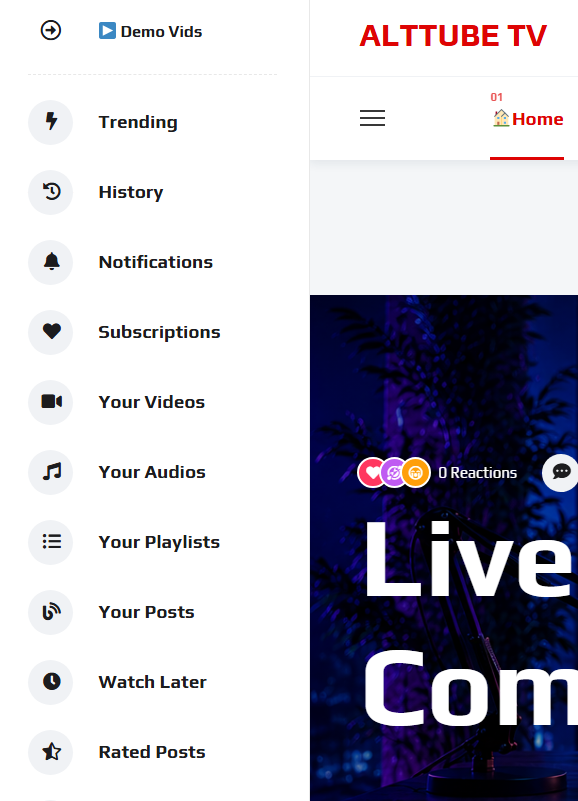
By Scrolling down inside the Side Menu, you’ll find shortcuts to key areas including Video Sub Menus at the top, Trending, History, Notifications, Subscriptions, Your Videos, Your Audios, Your Playlists, Your Posts, Watch Later, and Rated Posts. The menu is designed to help you quickly manage your content, access your personal library, review activity, and discover new videos. Whether you’re a viewer looking for saved content or a creator managing uploads, the Side Menu serves as your central navigation hub for exploring and controlling your Alttube TV experience.

Step 1. How To Open The Side Nav Menu: #
 #
#
Step 2. Side Menu Opens: #
Step 3. Scroll down past the Video Sub Categories to access the Video Tools. Many of these tools can also be accessed from your “Channel Menu”. #
📂 Categories & Browse #
If you prefer to explore, the Sub Categories section found in the Side Menu it’ll help you browse specific content by topic or genre.
- Organized content collections
- Easy filtering by interest
- Constantly updated sections
This is the best place to discover new content you didn’t know you were looking for.
📺 My Channel Section #
Your personal hub for saved and interacted content.
Inside My Channel Section, you can access:
- Saved videos
- Saved Audios
- Your Playlists
- Posts
- Subscriptions
- Watch Later
- Notifications
- History
- Rated
- Reacted
- About
- Discussion
Think of this as your personalized content space or library.
🔔 Notifications #
Stay up to date with everything happening on your account.
Notifications include:
- New content from creators you follow
- Platform updates
- Important account alerts
⚙️ Account & Settings #
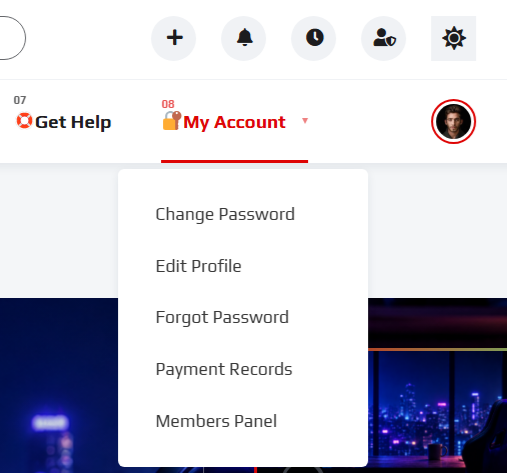
Manage your account and customize your experience.
Here you can:
- Update profile information
- Change your password
- Adjust privacy settings
- Configure preferences
Keeping your settings up to date ensures the best possible experience.
💡 Pro Nav Tips #
- Use search for speed, categories for discovery
- Save content to avoid losing it later (Use Watch Later)
- Check notifications regularly so you don’t miss updates
- Keep your library organized for quick access
Alttube TV Nav Tips: A Complete Beginner’s Guide #
Getting comfortable with Alttube TV Nav Tips is the fastest way to unlock everything Alttube TV has to offer. This guide walks you through the main areas of the platform so you comfortable knowing where to go and how to get there. By learning these basics early, you can navigate faster, avoid confusion, and fully enjoy all available features with confidence.
Why Alttube TV Navigation Matters #
Understanding Alttube TV Nav Tips is key to having a smooth and efficient experience on the platform. Our navigation system helps you quickly access content, manage their accounts, and explore new features without confusion. With Alttube TV Navigation, everything is structured to be intuitive, reducing the time spent searching and increasing the time spent enjoying content.
Optimizing Your Experience with Alttube TV Nav Tips #
To get the most out of Alttube TV Navigation, use the search feature for speed and explore categories for discovery. Keeping your library organized and checking notifications regularly will enhance your overall experience.
As you continue using the platform, Alttube TV Navigation becomes second nature. Its user-friendly design ensures a seamless, efficient, and enjoyable journey every time you log in.
🚀 You’re Ready to Explore #
Now that you understand how Alttube TV Navigation works, you’re ready to move through our platform with confidence. The more you use it, the more intuitive it becomes.
Would you like to learn more? Continue to the next guide to learn how to Update Your Profile.
Have Questions? Contact Us or you can view our FAQ page for more information.